Getting Started
Installation
Install your Mecanes Unreal Engine plugin via FAB or manually, then enable it in your project.
Overview
This page explains how to install a Mecanes Unreal Engine plugin and enable it in your project.
Most users should install via FAB / Epic Games Launcher. Manual installation is also available for advanced workflows.
Method 1 — Install via FAB (Recommended)
This is the easiest and safest method because the Launcher handles the plugin location and engine version.
- Open the Epic Games Launcher
- Go to Unreal Engine → Fab
- Search for the plugin (or open the Mecanes publisher page)
- Purchase / download the plugin
- Click Install to Engine (choose the Unreal Engine version you want)
- Launch Unreal Engine and open your project
- Go to Edit → Plugins
- Find the plugin category (or search by name) and enable it
- Restart the editor if Unreal asks you to
✅ After restart, the plugin should appear in your menus / content / settings depending on the product.
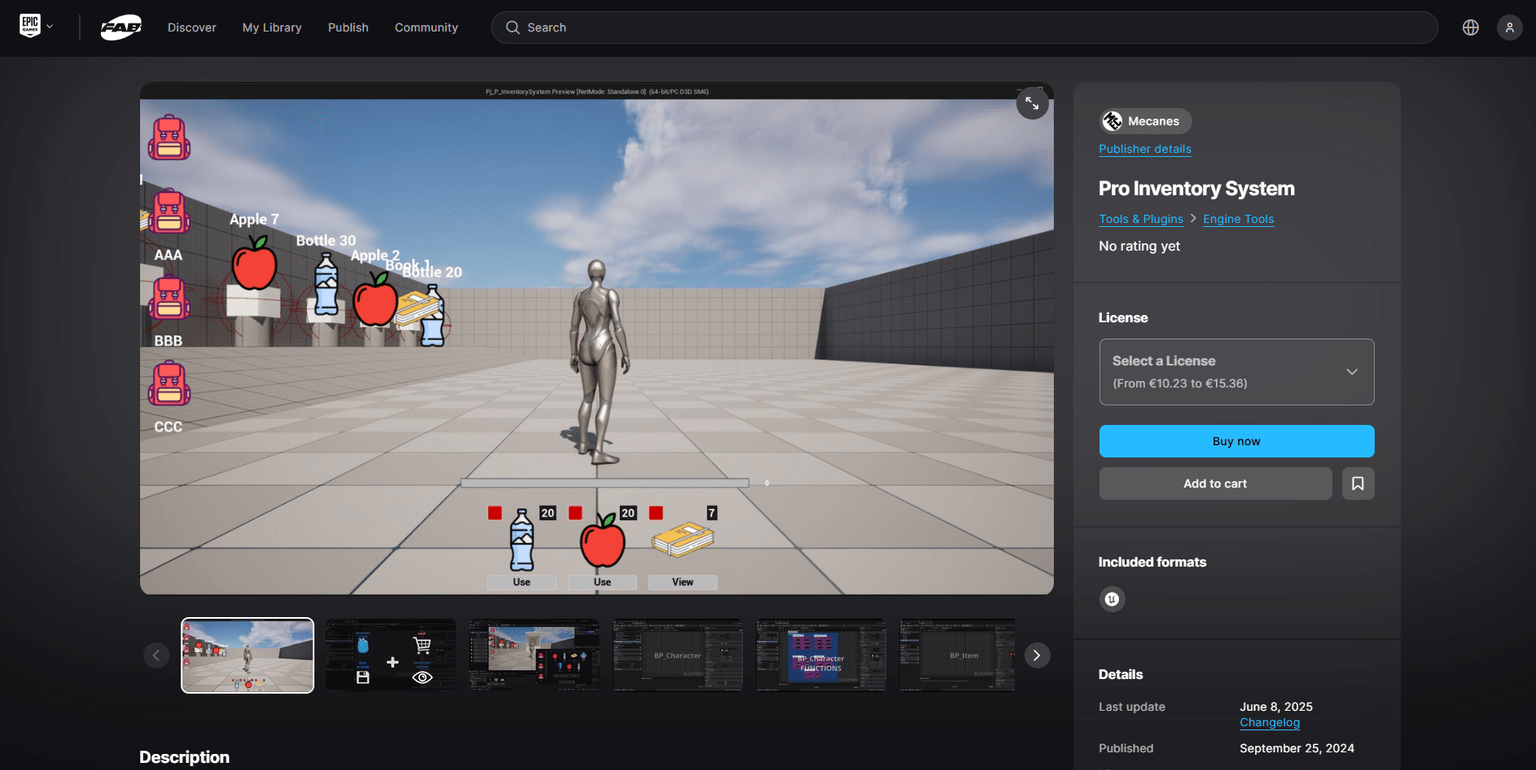
Screenshot of the Epic Games Launcher showing the plugin page with the "Buy Now" button.
Method 2 — Install via Mecanes Store (Coming Soon)
A dedicated Mecanes Store is currently in development.
Soon you’ll be able to:
- purchase products directly
- download the latest versions anytime
- access invoices and licenses
- get faster updates and extras
🚧 Coming soon — for now, please use FAB / Epic Games Launcher.
Verify the Installation
After restarting Unreal Engine:
- Open Edit → Plugins and confirm the plugin is Enabled
- If the plugin includes content, enable:
- Content Browser → Settings → Show Plugin Content
- If the plugin uses project settings, check:
- Edit → Project Settings (look for the plugin name)
Common Issues
The plugin does not appear in the Plugins list
- Make sure you installed it to the same Unreal Engine version you are using
- If installed manually, verify the folder path is correct:
YourProject/Plugins/YourPluginName/YourPluginName.uplugin
Unreal asks to rebuild modules / compile
- This is normal for C++ plugins when using a source build or mismatched binaries
- Ensure you have the correct Visual Studio / toolchain installed for your UE version
Plugin content is missing
- Enable Show Plugin Content in the Content Browser settings