EOS Advanced Session
Setup & Configuration
Configure Epic Online Services and enable EOS Advanced Session in your Unreal Engine project.
This guide walks you through setting up Epic Online Services (EOS) and configuring the EOS Advanced Session plugin in your Unreal Engine project.
Follow each step carefully to ensure multiplayer services function correctly.
Prerequisites
Before using the plugin, make sure you complete the following steps.
1. Create an Epic Games Account
- Go to https://store.epicgames.com
- Click Sign In → Sign Up
- Complete registration and verify your email
2. Access the Epic Developer Portal
- Visit https://dev.epicgames.com/portal
- Sign in using your Epic account
- Accept developer terms if prompted
3. Create an Organization & Product
Create an Organization (first time only)
- Click Create Organization
- Enter your organization details
- Complete setup
Create a Product
- Click Create a New Product
- Enter a product name
- Save
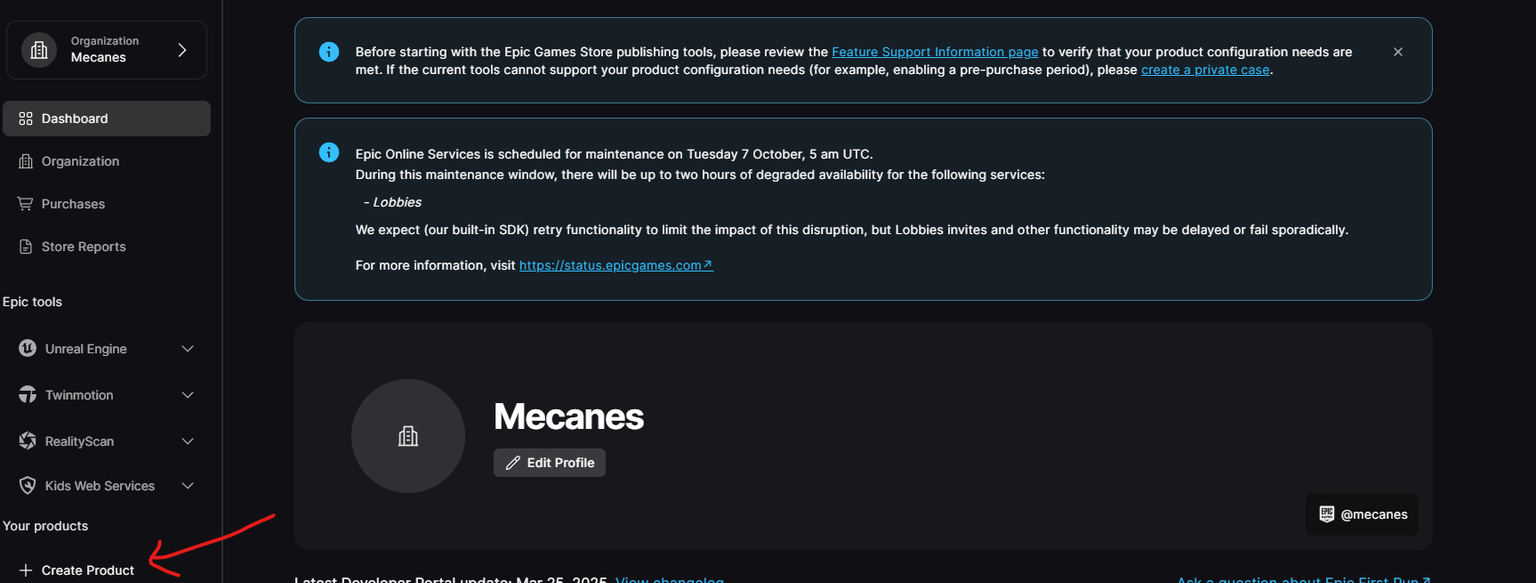
4. Create an EOS Application
Navigate to:
Product Settings → Epic Account Services
Create a new application and client.
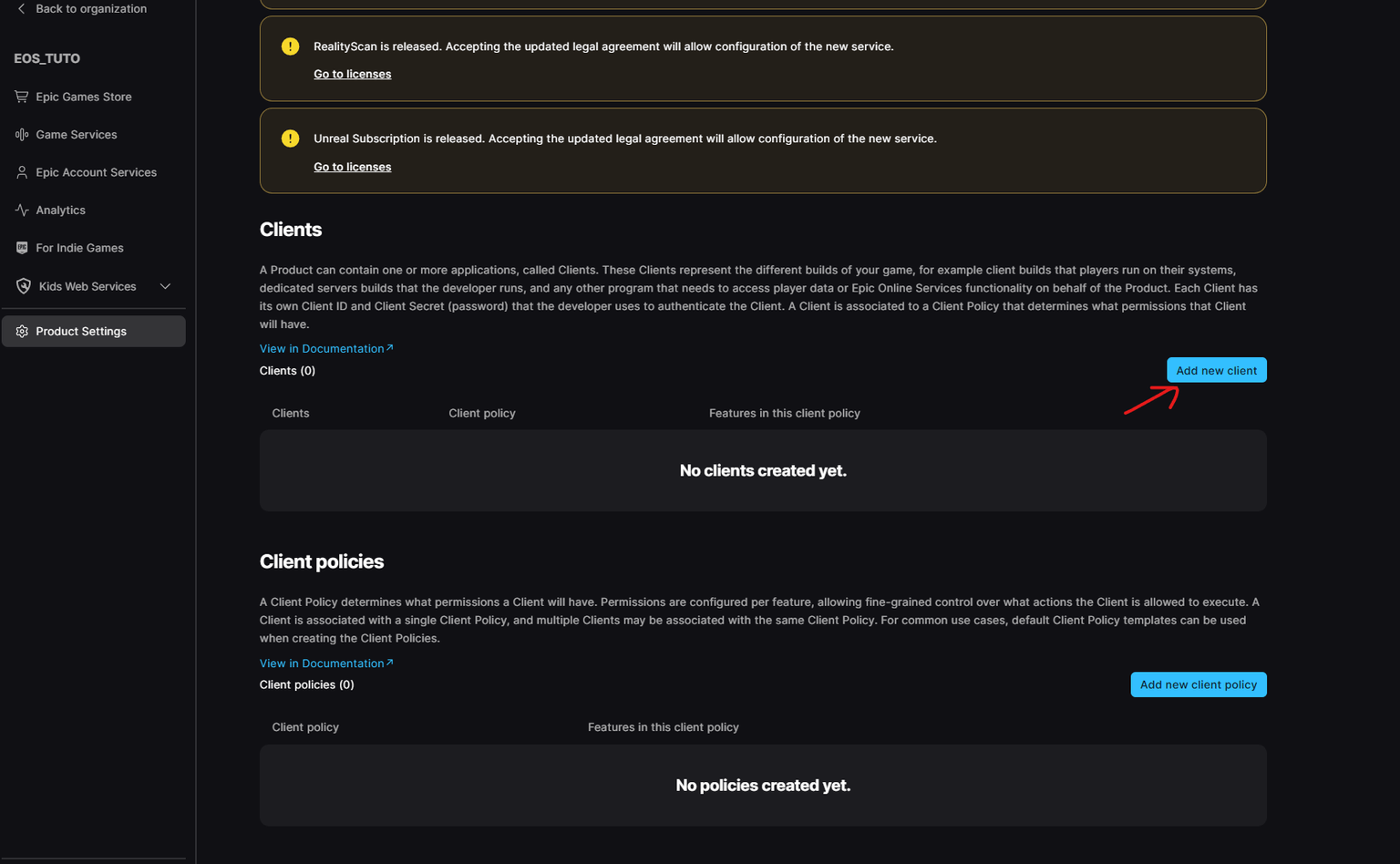
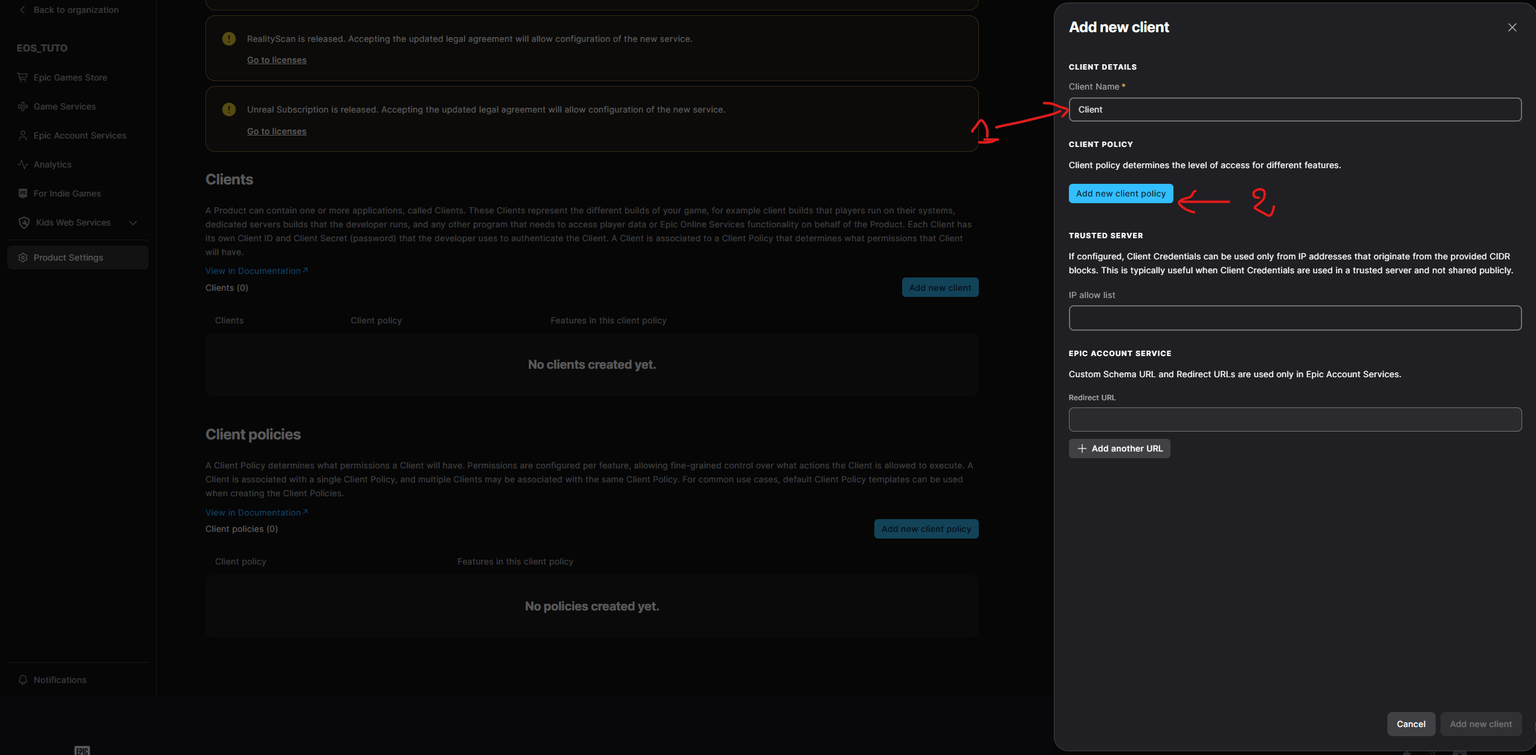
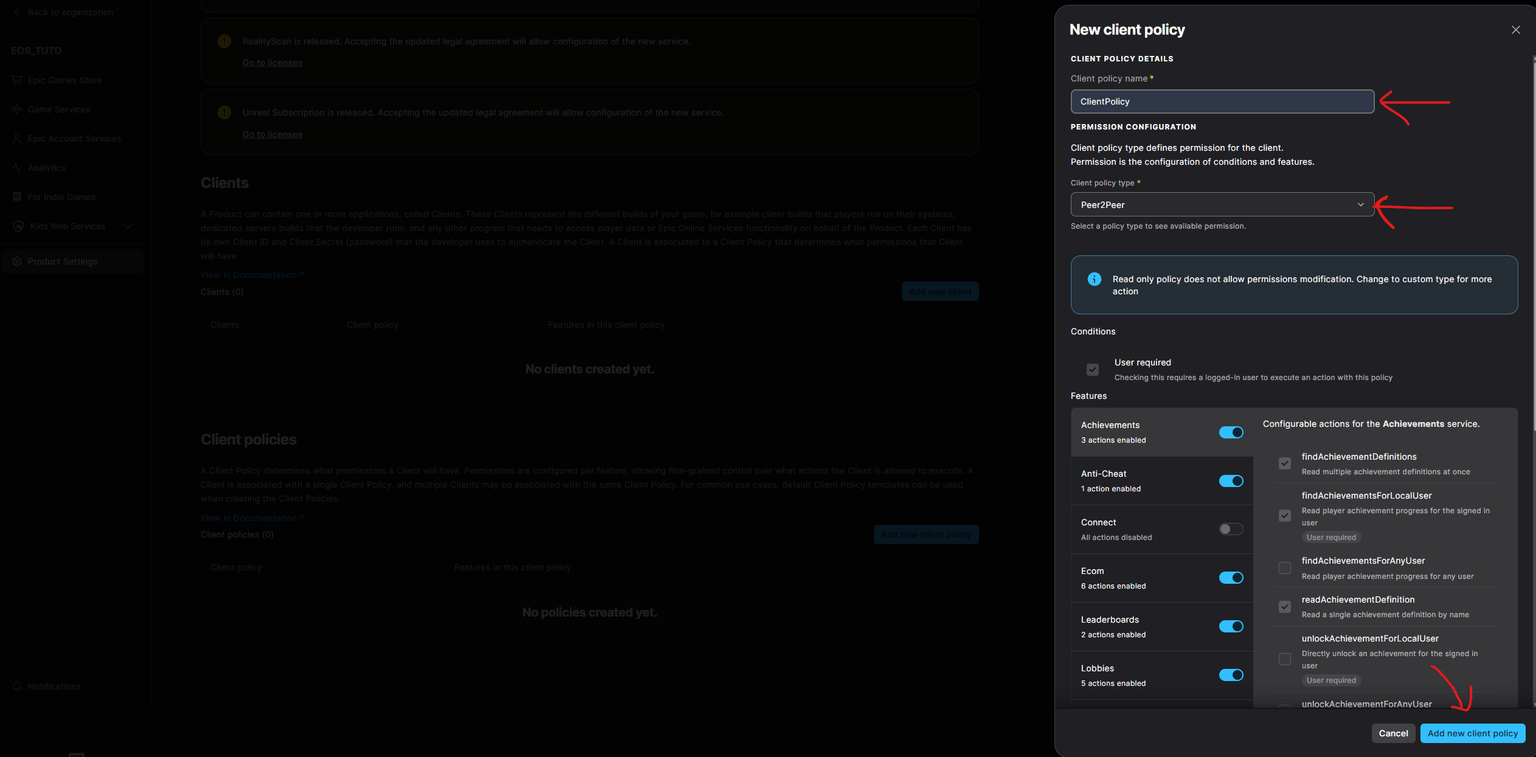
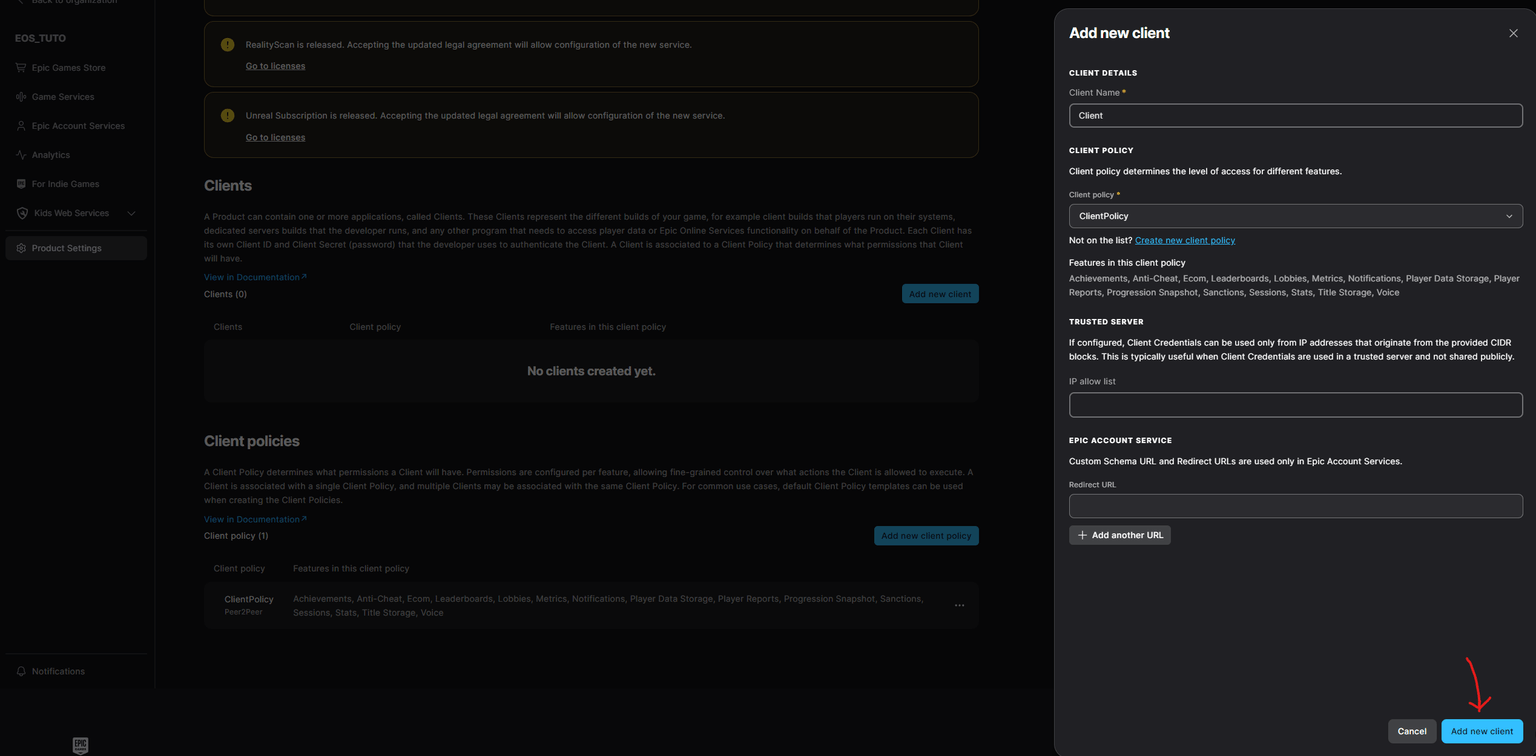
5. Retrieve EOS Credentials
Go to:
Product Settings → EOS SDK Credentials
Save the following:
- Product ID
- Client ID
- Client Secret
- Sandbox ID
- Deployment ID
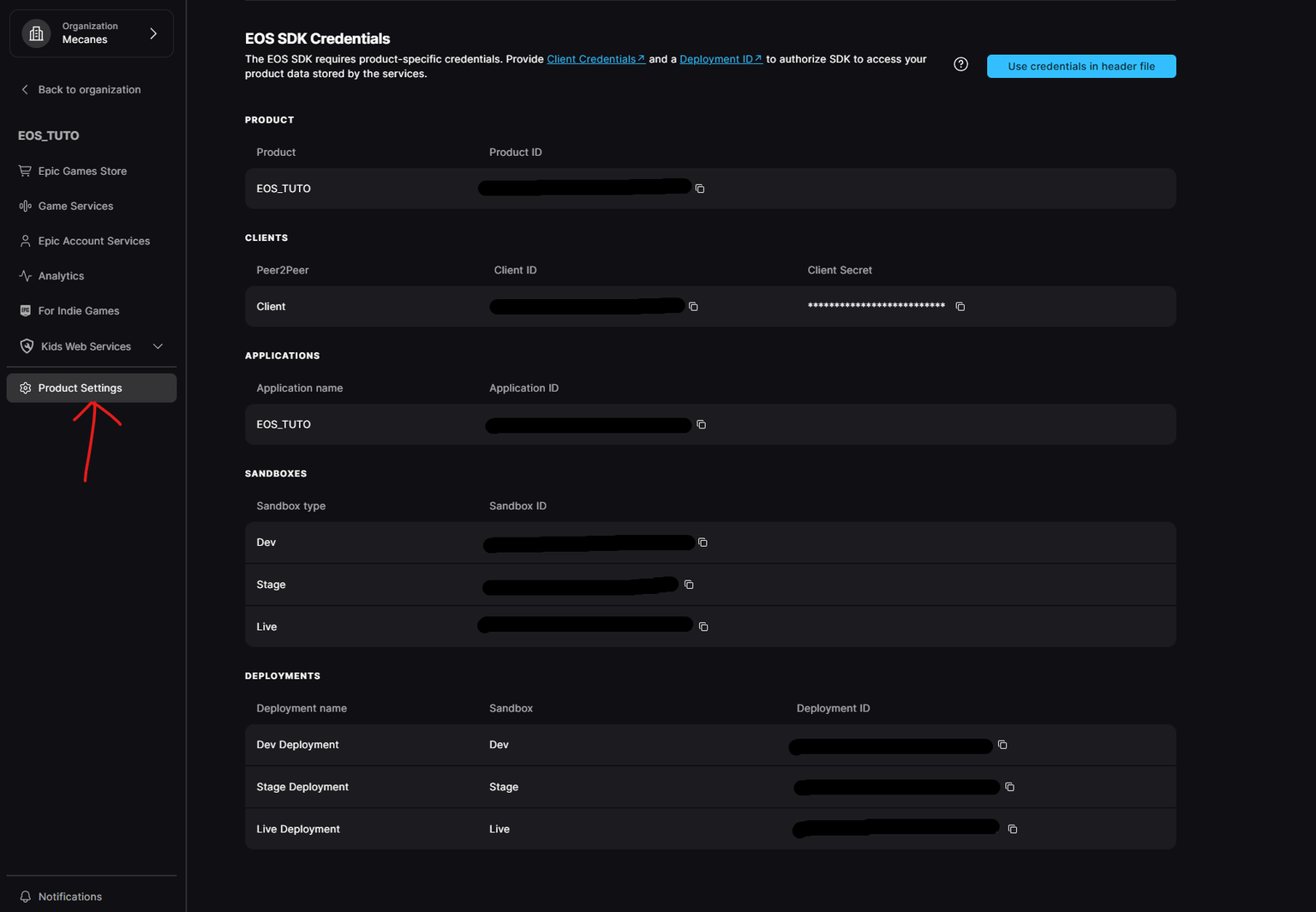
6. Enable Required Unreal Plugins
In Unreal Engine:
- Go to Edit → Plugins
- Enable:
- EOS Advanced Session
- Online Subsystem EOS
- Restart Unreal Engine
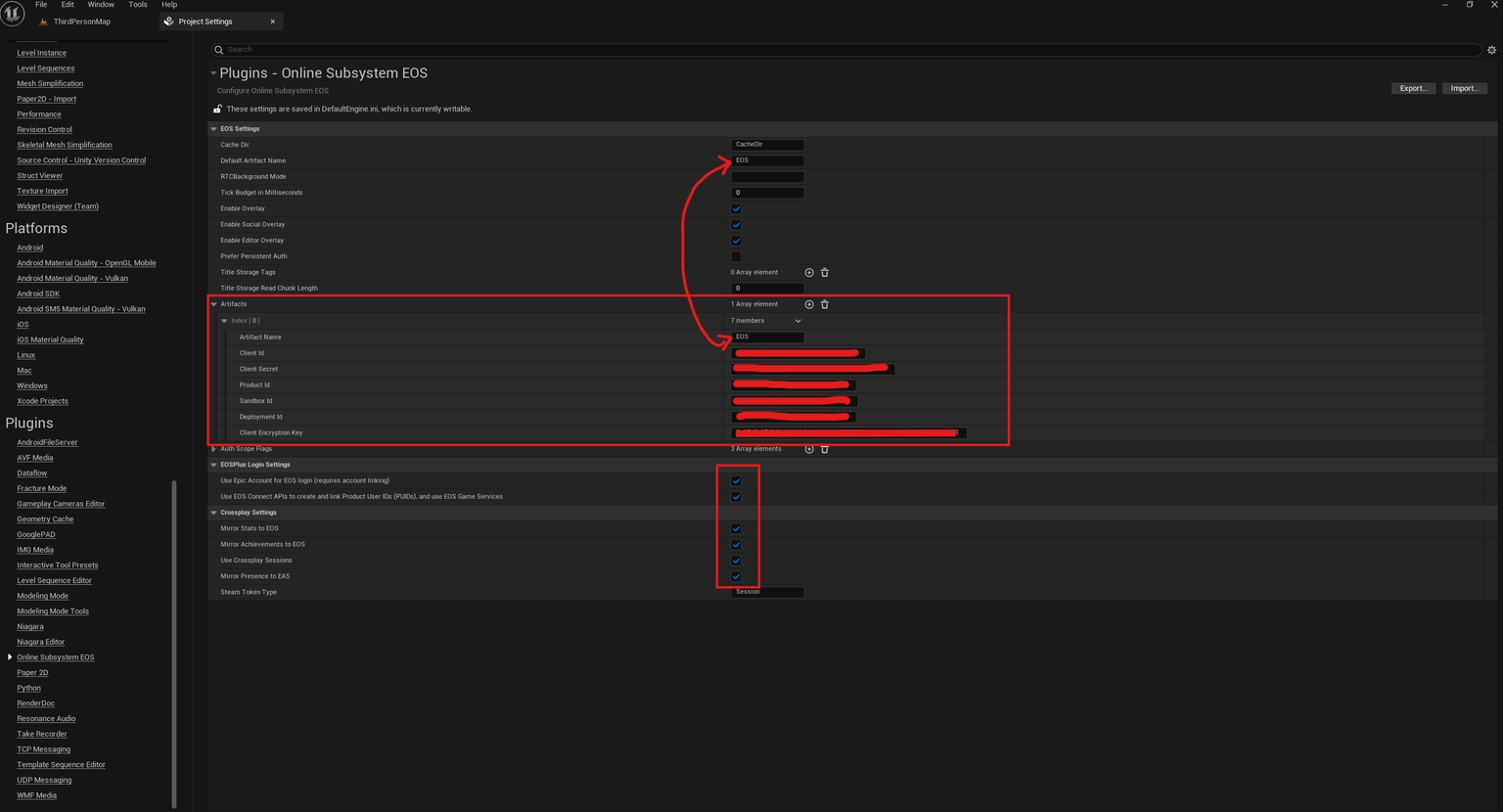
7. Configure Project Settings
Open:
Edit → Project Settings → Plugins → Online Subsystem EOS
Required configuration
- Default Artifact Name must match your EOS Artifact Name
- Enter:
- Client ID
- Client Secret
- Product ID
- Sandbox ID
- Deployment ID
- Client Encryption Key
(you can generate one here: https://www.browserling.com/tools/random-hex)
8. Configure DefaultEngine.ini
Open:
YourProject/Config/DefaultEngine.ini
Add or modify the following section:
[OnlineSubsystemEOS]
bEnabled=true

[OnlineSubsystem]
DefaultPlatformService=EOS

[/Script/Engine.Engine]
!NetDriverDefinitions=ClearArray
+NetDriverDefinitions=(DefName="GameNetDriver",DriverClassName="/Script/SocketSubsystemEOS.NetDriverEOSBase",DriverClassNameFallback="/Script/OnlineSubsystemUtils.IpNetDriver")
+NetDriverDefinitions=(DefName="DemoNetDriver",DriverClassName="/Script/Engine.DemoNetDriver",DriverClassNameFallback="/Script/Engine.DemoNetDriver")

[/Script/SocketSubsystemEOS.NetDriverEOSBase]
bIsUsingP2PSockets=true
EOS Advanced Session is now configured.
Troubleshooting
Login or session creation fails
- Verify all EOS credentials
- Ensure the Artifact Name matches exactly
- Confirm Sandbox ID and Deployment ID
Plugin features unavailable
- Confirm both EOS plugins are enabled:
- EOS Advanced Session
- Online Subsystem EOS
- Restart Unreal Engine after making changes