Installation
Installation
This guide explains how to install any Mecanes plugin into your Unreal Engine project.
Step 1 — Download from FAB
- Open the Epic Games Launcher
- Go to Unreal Engine → Fab and navigate to the Mecanes publisher page
- Find your plugin, then click Buy Now (or Add to Cart if free)
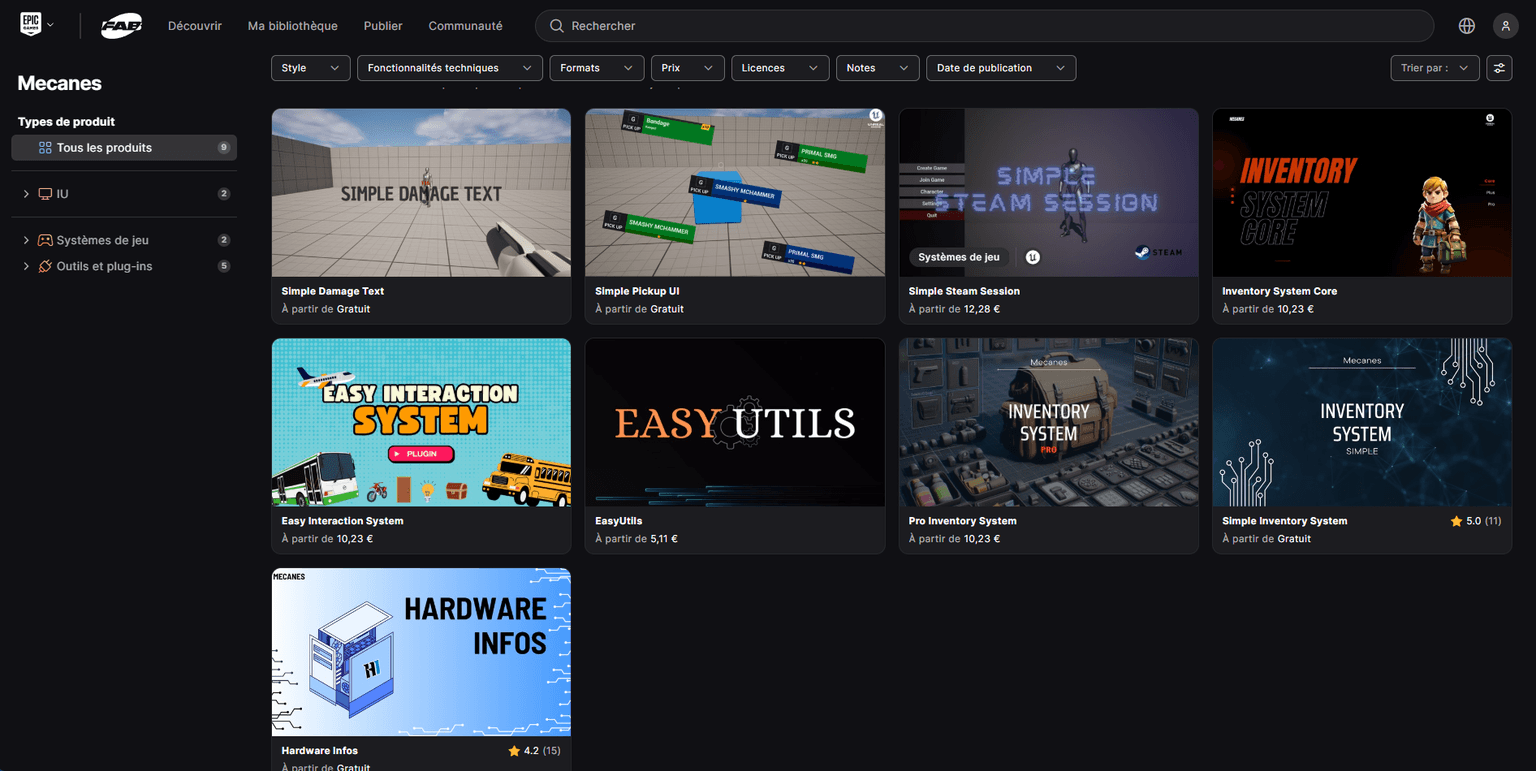
FAB tab in the Epic Games Launcher.
Step 2 — Install to Engine
- Once purchased, click Install to Engine
- Select the Unreal Engine version that matches your project
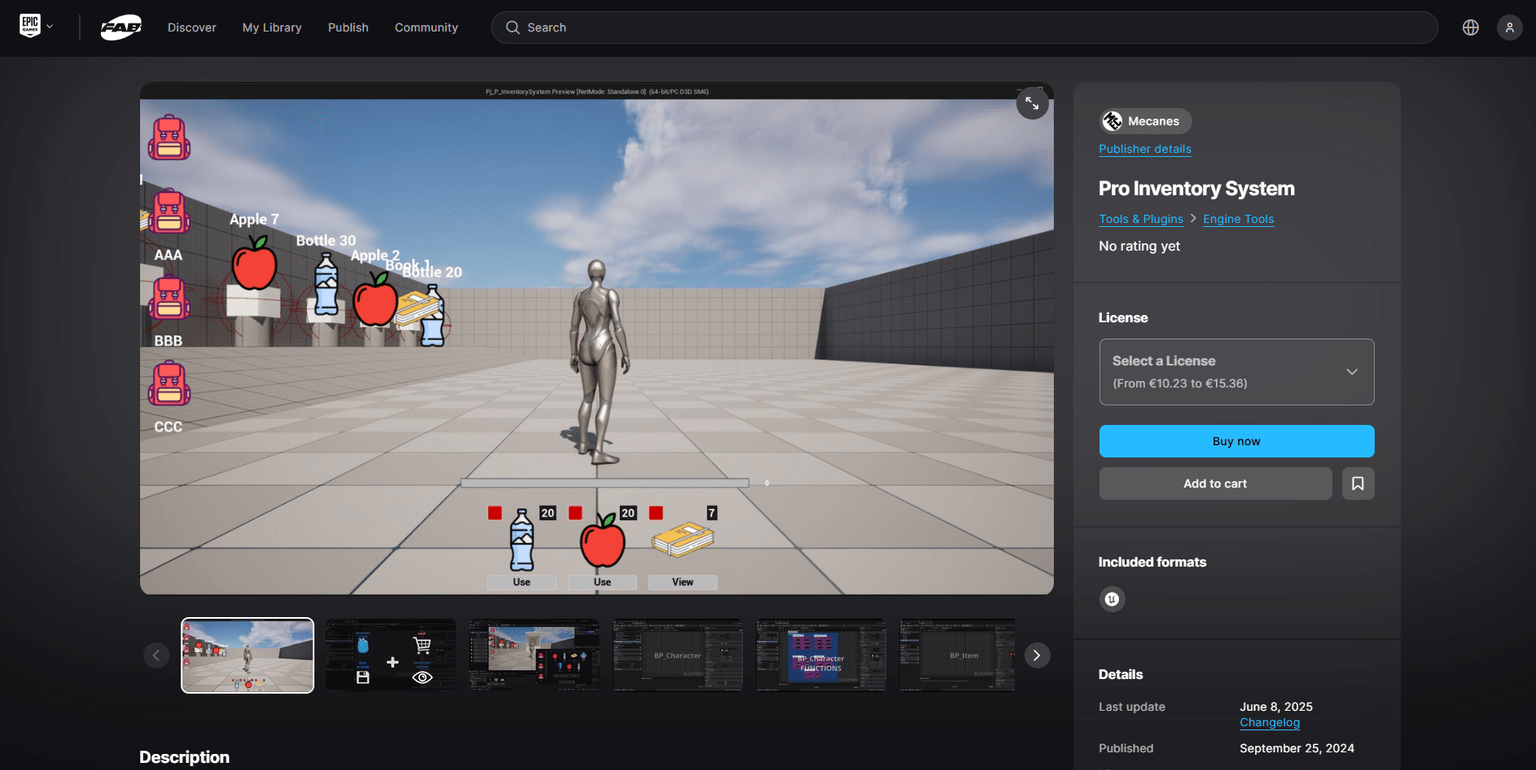
Choose the engine version matching your project.
Step 3 — Enable in Your Project
- Launch Unreal Engine and open your project
- Go to Edit → Plugins
- Search for the plugin by name and tick the Enabled checkbox
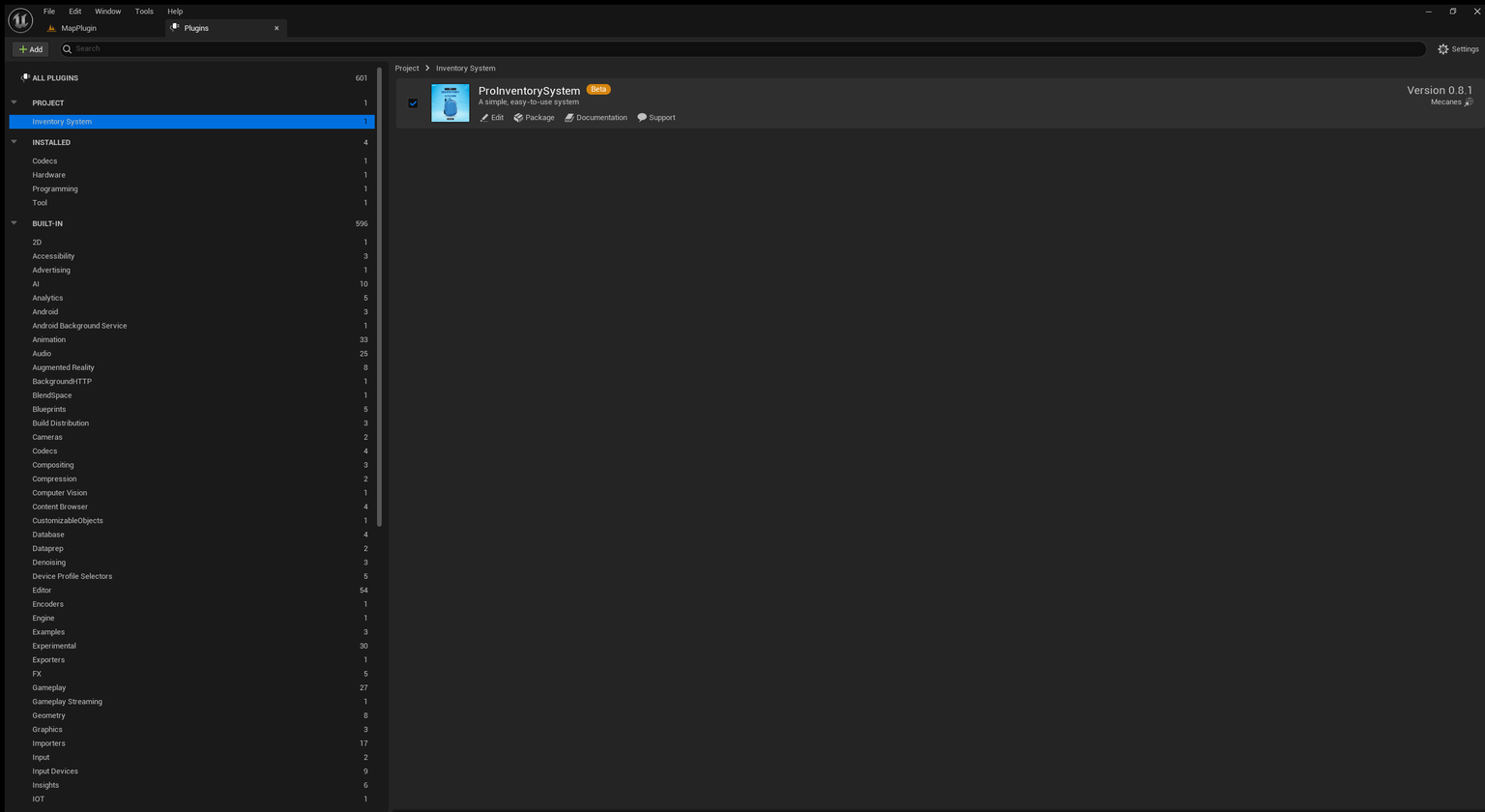
Enable the plugin from Edit → Plugins.
- Click Restart Now if Unreal Engine prompts you
Verify Installation
After restarting, confirm the plugin is active:
- Go to Edit → Plugins — the plugin should show Enabled
- Open any Blueprint — the plugin's nodes or components should appear in the palette
If the plugin doesn't appear, double-check that it was installed to the correct engine version and that the Enabled checkbox is ticked.
Troubleshooting
The plugin doesn't show up in the Plugins list. Make sure you installed it to the correct engine version. Re-open the Epic Games Launcher, go to Fab → Library, and verify the install target.
The plugin is enabled but nodes are missing in Blueprints. Restart the editor fully (not just hot-reload). If the issue persists, join the Discord for help.
Introduction
Welcome to the Mecanes Plugins documentation. Learn how to install, configure, and get the most out of Mecanes Unreal Engine plugins.
Introduction
EOS Leaderboard is a Blueprint-first plugin for Unreal Engine 5.4+ that integrates Epic Online Services Leaderboards into your game — stat ingestion, rank queries, range filtering, and automatic player identity management included.